
Document Definition for Offers
The document definition for offers in Surface Solutions allows you to centrally control the layout, content, and default values for all offers. This applies to all offers created within the organization. Through the document definition, you specify which information should appear by default on each offer, which logo and PDF background are used, and which standard positions are automatically inserted.
The settings apply to all offers in the organization that are created based on a calculation. At the same time, certain values in the offer editor can be overwritten per offer — for example, contact details, prices, or visible positions.
Logo and PDF Background
For offers, you can set a specific logo and PDF background. These apply by default to all offers in the organization, including follow-up offers. This ensures that each offer has a consistent appearance.
Contact Information and Standard Details
In this section, you can define key information that should appear on every offer:
-
Contact person and contact details
-
Return address
-
Phone number and email
-
Footer
-
Payment and delivery terms
-
Shipping information
-
General notes
These standard details are automatically included in the offer editor but can be modified or extended for individual offers if needed. This ensures that all offers contain the required information while remaining flexible.
Standard Positions
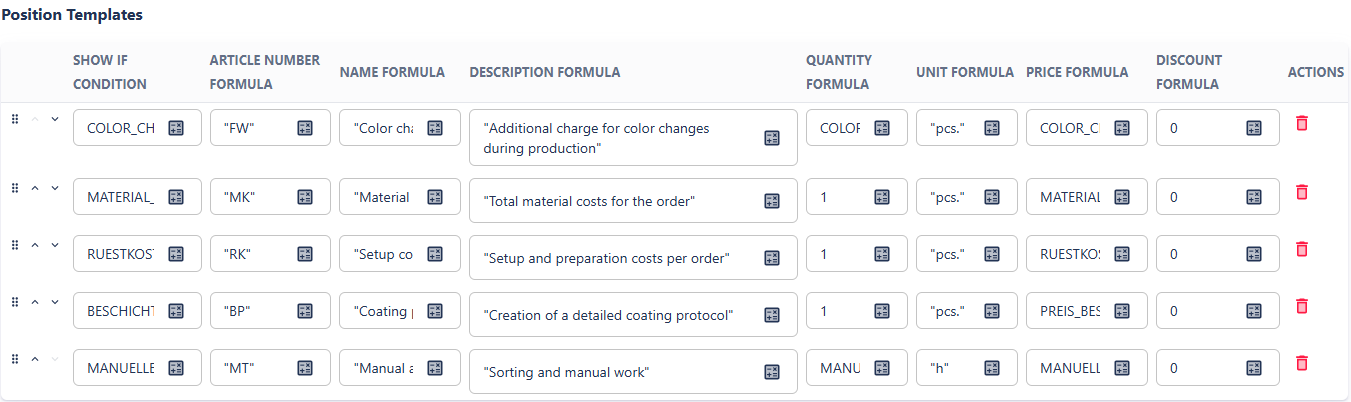
Standard positions are one of the most important features of the document definition for offers. They allow you to automatically print additional positions on each offer that do not originate directly from the calculation. This is especially useful for surcharges or lump sums that apply to the overall offer, such as:
-
Total material costs
-
Number of color changes
-
Setup costs
Note: Setup costs are a common example of a standard position because they are calculated once for the entire offer and cannot be distributed among individual positions.
Features of standard positions:
-
Automatic Integration: All standard positions are automatically included in the offer editor. Users can delete them if they should not be displayed.
-
Access to Summary Template Variables: Standard positions can access only variables from the calculation’s summary template.
-
Price Calculation: The “Price” field can reference a variable directly or define its own formula, which can combine multiple variables (e.g.,
MATERIALCOSTS). -
Visibility: Each standard position can have a visibility condition defined as a formula. If the condition evaluates to
TRUE, the line appears on the offer. Multiple conditions can be combined withAND/OR. -
Flexibility: Standard positions enable the application of costs to the overall result without requiring changes to each position individually. They are ideal for flat-rate costs, additional efforts, or percentage-based surcharges.
Other general costs and surcharges not covered by standard positions are proportionally distributed among the calculation’s existing positions.
Example of Using Standard Positions: Consider a calculation with two positions (Component A and Component B) and a summary template defining a 5% administrative surcharge.
Calculation
Position A 1 pcs € 100,- Position B 1 pcs € 200,- Administrative surcharge 5% € 15,- Total € 315,- If you do not use standard positions, the administrative surcharge is proportionally distributed:
Offer without Standard Position
Position A 1 pcs € 105,- Position B 1 pcs € 210,- Total € 315,- If you add a standard position referencing the variable
SUM_POSITION_PRICESfrom the summary template, you get a offer with a listed surcharge:
'5% Administrative Surcharge' SUM_TOTAL_POSITION_PRICES * 0.05 Offer with Standard Position
Position Quantity Price Position A 1 pcs € 100,- Position B 1 pcs € 200,- 5% Administrative surcharge € 15,- Total € 315,-
Offer Number
The offer number is managed through its own numbering sequence, independent of invoices or credit notes.
-
Number Format: You can define the format of the offer number per organization, e.g., sequential numbers, year, or quarter identifiers.
-
Preview: On the right-hand side of the page, you can see a preview of the next available offer number.
