
Create Purchases
To create a new purchase, navigate in the main menu to the "Purchase" section and click the "Create Purchase" button. You will then be guided step by step through the purchase process.
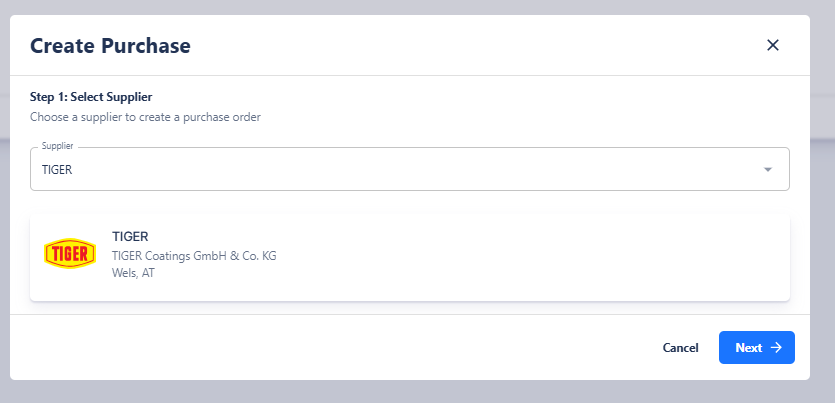
1. Select Supplier
In the first step, select the desired supplier. The list of available suppliers is based on the entries you previously created in Supplier Management. Once you select a supplier, their articles will automatically become available in the next step.
2. Select Articles and Batches
In the second step, specify which articles you want to purchase. For each article, you can:
-
specify the desired quantity,
-
select the batch size,
-
and, if needed, add additional notes.
This allows precise control over which materials are purchased and in which batch sizes. The selection automatically takes into account the batches and article information stored for the supplier.

Generate Purchase
After all articles are selected and quantities defined, you can confirm the purchase. You will then enter the Purchase Editor, where the purchase can be further edited or finalized. In this editor, the purchase can:
-
be generated as a PDF document,
-
be reviewed or adjusted if necessary,
-
and sent directly via email to the selected supplier.
The PDF document is structured similarly to the familiar offer and invoice templates and automatically contains all relevant information about the purchase, including article overview, quantities, and contact details.
In this way, purchases can be created and sent quickly, transparently, and with minimal effort directly from the system.
