
Calculation Editor
The Calculation Editor is the heart of Surface Solutions.
Here, new calculations are created, edited, and managed.
The editor provides a detailed overview of all relevant information, customer and item data, as well as the ability to configure positions and surcharges individually.
Header in the Calculation Editor
In the upper section of the page (overview row), the most important general information is displayed:
-
Creation date of the calculation
-
Status
-
Name of the calculation
-
Total price (top right)
Once a calculation is completed, the "Create Offer" button also appears at the top right.
This button is available when a customer has already been assigned to the calculation and at least one position exists.

The Create Offer function is described in detail in the Offers chapter.
Overview of the Calculation
Below the overview row, the general information about the calculation is displayed.
Customer Data (left)
On the left side, the customer data is displayed.
Using the "Edit Customer" button, you can view and adjust all information related to the customer:
-
Company Name
-
Address
-
Contact Person
-
Email Address and Phone Number
-
Tax Information (e.g., VAT Identification Number)
If a customer already exists in the system, it is sufficient to enter the first few letters of the name.
The system will then automatically suggest matching customers, which can be selected.
Using the "Create New Customer" button, you can also create a new customer directly within the Calculation Editor.

Additional Options (right)
On the right side, various functions are available:
-
Download CSV – Exports all information recorded in the calculation.
-
Manage Attachments – Allows uploading and downloading files, such as drawings or additional information.
-
Surcharge Fields – These fields apply to the entire calculation and include values such as:
-
Number of color changes
-
Total material costs
-
Total discount or total surcharges
-
Setup costs
-
Other flat-rate cost components
-
These fields affect the total price of the calculation, not individual positions. You can adjust these fields independently in the calculation definition.

Positions in the Calculation
Below the general information, all positions of the calculation are displayed.
Each position corresponds to a single item to be coated.
Add New Position
You can create a new position in two ways:
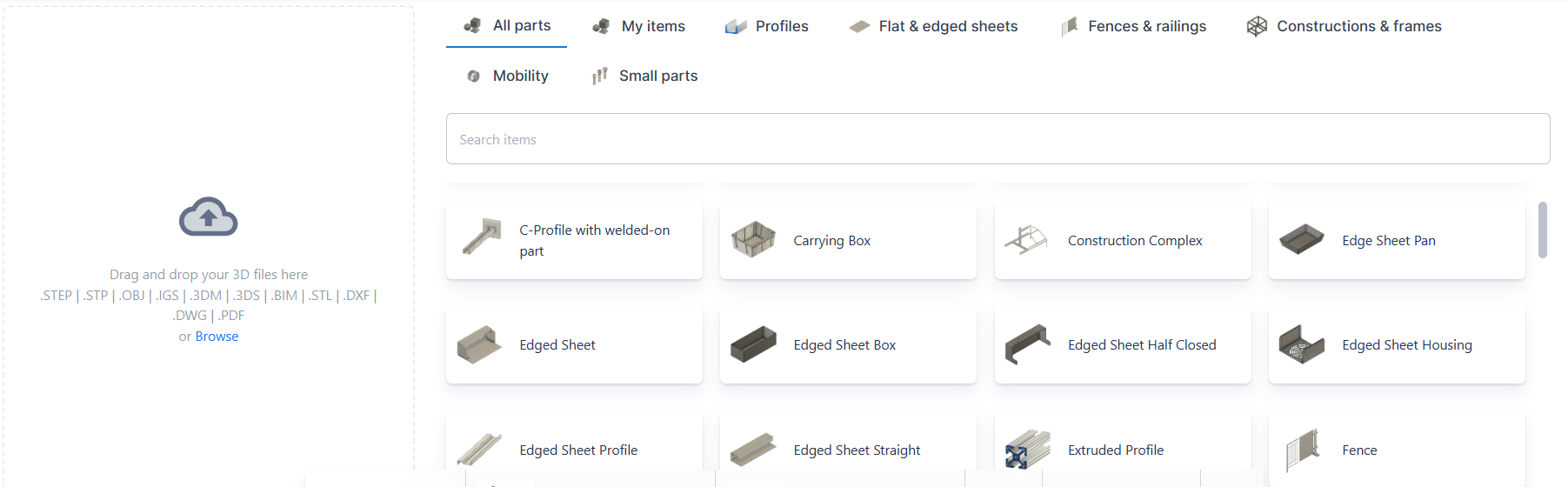
- Via Drag & Drop
Upload a 3D file or a technical drawing (e.g., in PDF format) directly into the position element. - From the Item Database
Select an existing standard item from the internal item library.
It already contains numerous predefined items in various categories.
You can also add your own items and assign individual calculation rules to them.
Structure of a Position
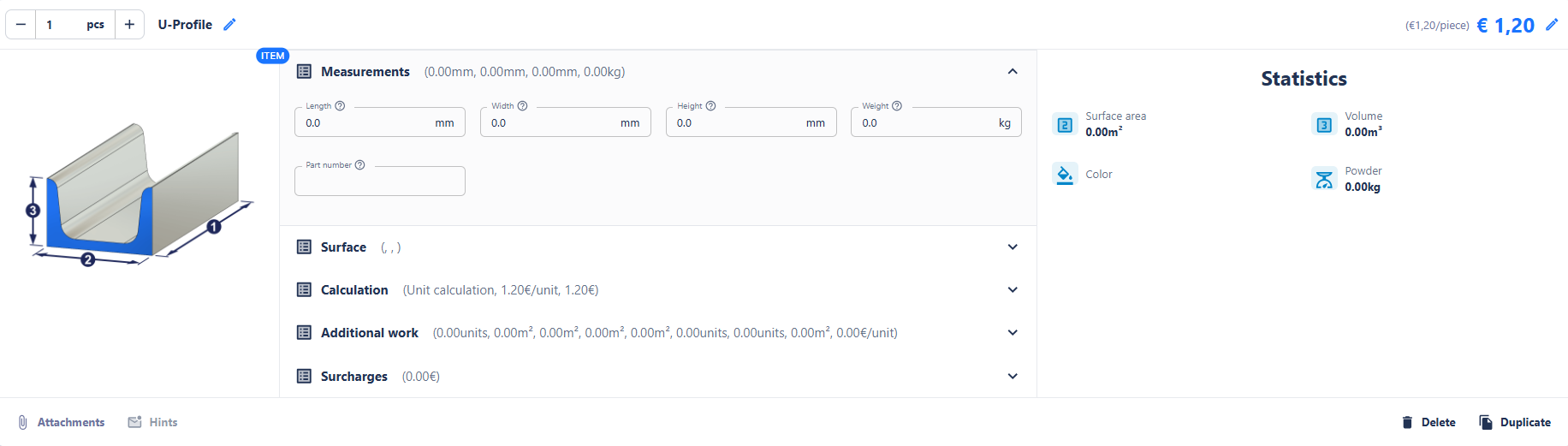
A position consists of several sections:
-
Top Left: Quantity and position name
-
Top Right: Total price of the position
-
Center: Input fields (e.g., length, width, height, color, weight, item number, surcharges, etc.)
-
Right: Position statistics (e.g., surface area, volume, color, powder quantity)
-
Bottom Left: Notes (messages definable via the calculation definition)
-
Bottom Right: Buttons to duplicate or delete the position
Using the pencil icon, all values can be adjusted manually.
This also applies to automatically calculated values—the user always has the option to override results individually.
Notes
In the Notes section, rules or informational messages can be stored, which appear automatically when certain conditions are met.
Example:
"Warning: The item exceeds the maximum size of the coating system."
This function is designed to alert users to potential limitations or special considerations in the calculation.
Editing Functions
-
Duplicate: Creates an identical copy of the position, which can then be adjusted.
-
Delete: Completely removes the position from the calculation.