Suppliers & Purchases
Overview
The supplier and purchase management in Surface Solutions serves as a central hub for organizing all supplier information, purchases, and material requirements.
Here, you can create suppliers, manage their articles and batch sizes, create purchases, and monitor material requirements.
The information from supplier management forms the basis for efficient purchase processes and timely fulfillment of all purchases – making it a central part of the overall workflow.
With the supplier and purchase management, you can:
-
Record and edit supplier master data
-
Manage supplier articles and batches
-
Create, edit, generate as a PDF, and send purchases via email
-
View material requirements and receive automatically optimized purchase suggestions
The supplier and purchase management are divided into the main areas:
- Manage Suppliers:
In the supplier overview, you see all suppliers recorded for your company.
Here you can add new suppliers or edit existing records.
For each supplier, central information can be stored, including articles, batch sizes, color system, gloss level, and surface structure.
Articles can be marked as preferred so that they are prioritized in purchase suggestions, even if the price is higher. - Create Purchases:
Use the "Create Purchase" button to start the purchase process.
First, select the desired supplier, then the articles and batches to be purchased.
In the purchase editor, you can finalize the purchase, generate it as a PDF, and send it directly via email to the supplier. - Material Requirements:
The requirements list shows the current material needs from all purchases.
On the left, you see the required materials and their quantities; on the right, the system automatically displays the matching purchase suggestions.
The system considers the optimal suppliers, batch sizes, and quantities to minimize costs and avoid shortages.
Low stock is also highlighted, allowing you to respond in a timely manner.
Manage Suppliers
Under Manage Suppliers, you will find an overview of all suppliers registered in the system. Using the button "Add Supplier", you can create new suppliers and record their master data. Master data includes name, address, contact details, and optional internal notes. Existing suppliers can be edited or deleted at any time.
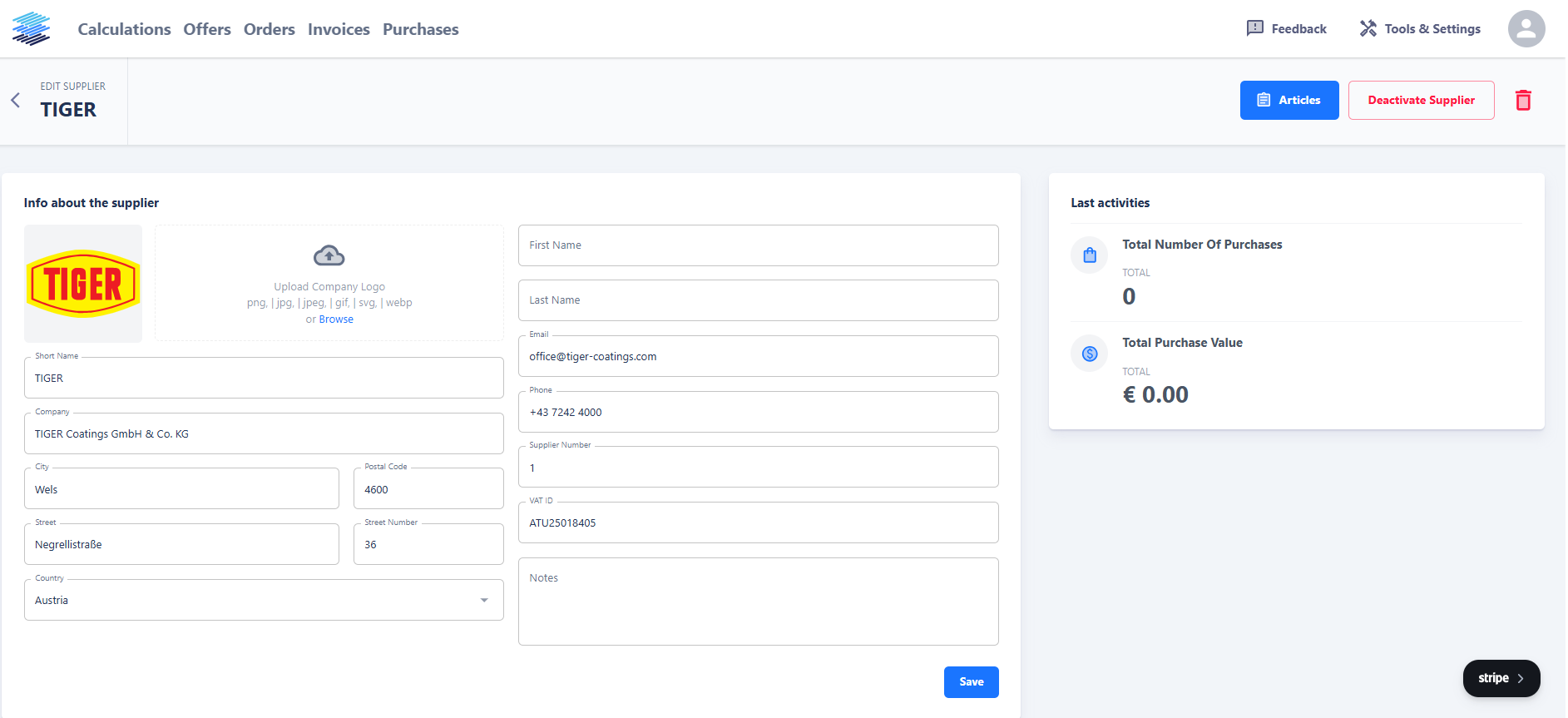
When you click on a supplier, their detail view opens. Here you can see an overview of activities and edit the stored information.
Under the tab "Articles", you manage the articles associated with this supplier. Each supplier can have multiple articles, and each article can be listed in several batch sizes. Batches define the lot sizes in which the article is offered by the supplier. This information is important to ensure that material requirements and purchase suggestions consider realistic quantities.
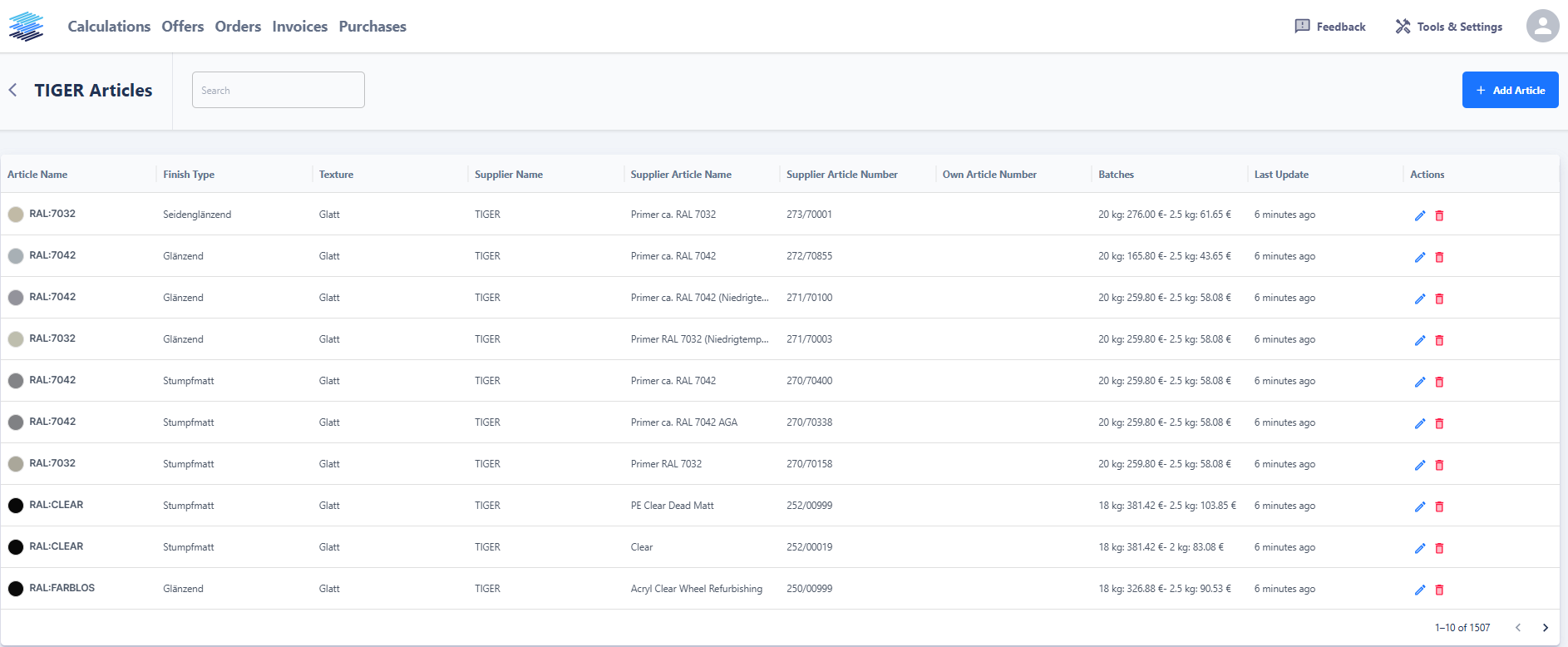
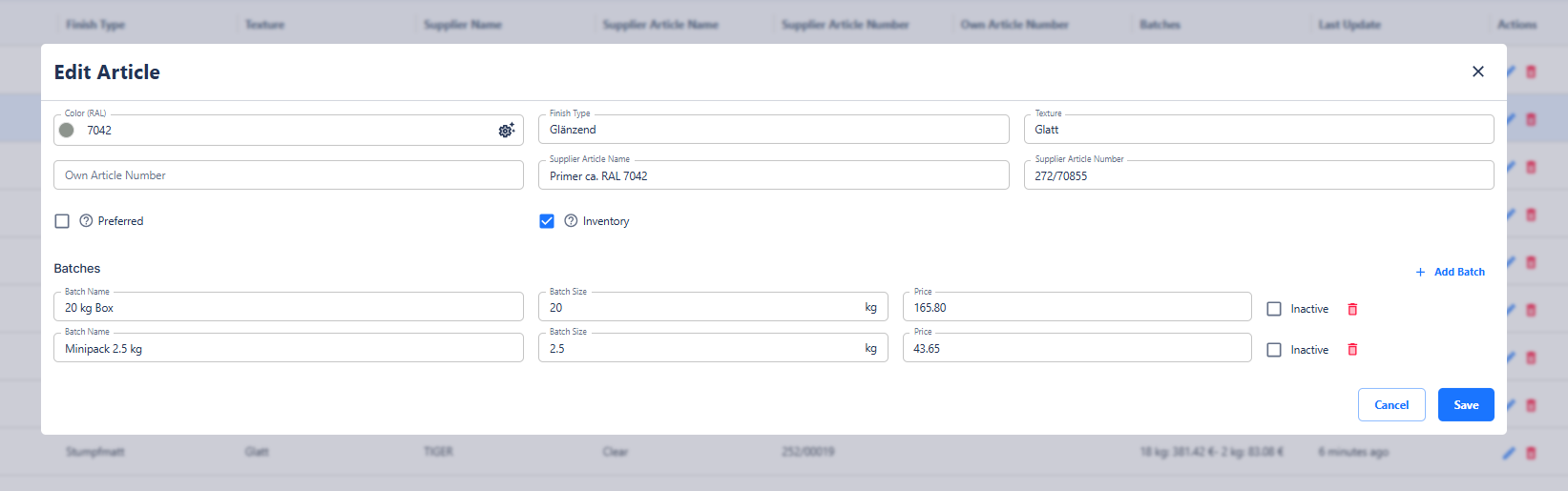
For each article, the following information can be maintained:
-
Article name, color code, color system, gloss level, and surface structure
-
Batches, i.e., the available lot sizes
-
Preferred option: If an article is marked as preferred, it will be prioritized in automatic purchase suggestions, even if its price is higher than competing products.
This way, you always maintain a clear overview of your suppliers and the materials they offer.
Create Purchases
To create a new purchase, navigate in the main menu to the "Purchase" section and click the "Create Purchase" button. You will then be guided step by step through the purchase process.
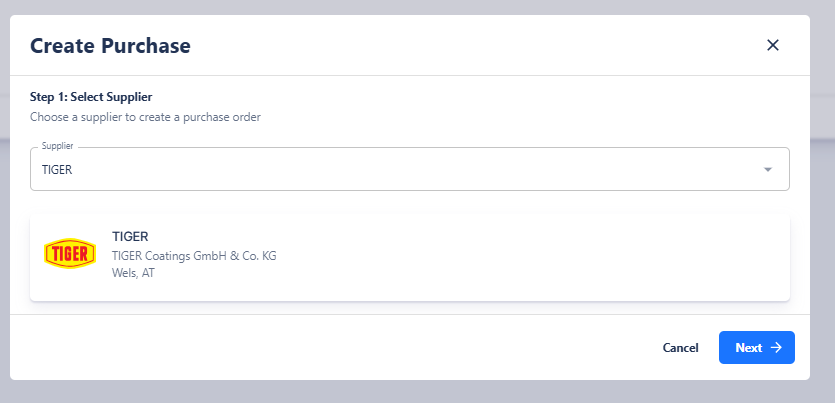
1. Select Supplier
In the first step, select the desired supplier. The list of available suppliers is based on the entries you previously created in Supplier Management. Once you select a supplier, their articles will automatically become available in the next step.
2. Select Articles and Batches
In the second step, specify which articles you want to purchase. For each article, you can:
-
specify the desired quantity,
-
select the batch size,
-
and, if needed, add additional notes.
This allows precise control over which materials are purchased and in which batch sizes. The selection automatically takes into account the batches and article information stored for the supplier.

Generate Purchase
After all articles are selected and quantities defined, you can confirm the purchase. You will then enter the Purchase Editor, where the purchase can be further edited or finalized. In this editor, the purchase can:
-
be generated as a PDF document,
-
be reviewed or adjusted if necessary,
-
and sent directly via email to the selected supplier.
The PDF document is structured similarly to the familiar offer and invoice templates and automatically contains all relevant information about the purchase, including article overview, quantities, and contact details.
In this way, purchases can be created and sent quickly, transparently, and with minimal effort directly from the system.

Material Requirements List
The Material Requirements page allows you to review the materials needed for your purchases and directly generate the optimal purchases. You can access this page by selecting "Tools & Settings" in the main menu and then clicking on "Requirements List".
The interface is divided into two sections:
-
Left Side – Requirements List:
Here you see all the materials required for your purchase. For each item, quantities, article information, and current stock levels are displayed. Additionally, you can select individual items to determine which materials should be included in the purchase suggestions. -
Right Side – Purchase Suggestions:
Based on the selected materials on the left, the system automatically generates an optimized compilation of purchases. The goal is to cover the entire material requirement while minimizing costs. Identical colors are combined, and the best combination of available suppliers and batch sizes is suggested.

Optimization Algorithm
The material requirements are analyzed intelligently:
-
Materials from different purchases are combined to avoid duplicate purchases.
-
The purchase suggestions take into account the optimal quantities that different suppliers can deliver, resulting in minimal total costs.
-
It is ensured that within one purchase, the same color is not sourced from different suppliers, ensuring consistency and deliverability.
Purchase from the Material Requirements
From the purchase suggestion list on the right, you can directly create purchases. This allows required materials to be purchased with just a few clicks, without manually compiling suppliers or articles.
Additional Features
-
Low stock levels are displayed, allowing you to quickly identify which materials need to be repurchased.
-
You can selectively remove or mark individual materials from the suggestions to customize purchases.
The Material Requirements page thus provides an intelligent, cost-optimized overview that allows you to control material flow while maximizing the efficiency of your purchases.