Order
Overview
Orders in Surface Solutions serve as the central management layer for all order processes. They allow you to generate orders from won offers, manage positions, monitor order status and progress, and directly create invoices or credit notes.
With orders, you can:
- Create and manage orders from won offers
- Edit, duplicate, delete, or add new positions
- View material requirements and order notes centrally
- Track and monitor the status of each order
- Create invoices when the outstanding amount is positive
- Create credit notes when the outstanding amount is negative
Orders are modular in structure and consist of several sections:
- Order Overview:
Displays all orders in a clear layout. Here, you can view information such as status, timeline, total order value, invoiced orders, and open orders. From this view, you can navigate directly to the related offers or invoices. - Order Editor:
Allows detailed editing of individual orders. You can add, edit, delete, or duplicate positions, apply discounts, manage attachments, add notes, and view material requirements. Outstanding amounts are displayed and used directly for creating invoices or credit notes.
Create Order
Orders allow you to represent won offers. They enable you to track costs and create invoices or credit notes.
An order can only be created from a won offer. To create an order, first set the status of an offer to Won. After doing so, the Generate Order button appears in the offer overview.
Clicking this button takes you directly to the Order Editor, where you can manage the new order.

When creating an order, all positions are automatically transferred from the won offer. This ensures that the calculation and the positions defined in the offer are correctly carried over into the order.
Invoices can later be generated from an order. All details about editing options within the order—such as adjusting quantities, prices, positions, or performing other operational steps—can be found in the Order Editor chapter.
Through the automatic transfer of offer positions and the direct connection to invoices, the system ensures consistent and traceable billing.
Order Overview
The order overview provides a structured display of all orders in your system and functions similarly to the calculation overview.
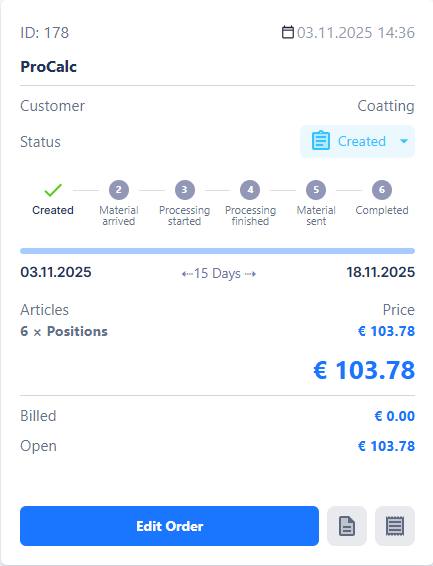
Each order is presented as a card, offering a quick summary of the most important information.
You can access the order overview by clicking “Orders” in your navigation bar.

On the cards, you will find:
-
Order Status: Indicates the current progress of the order
-
Timeline: Shows the planned completion target
-
Total Order Value: The sum of all positions within the order
-
Invoiced Amount: Positions that have already been billed
-
Open Amount: Positions that have not yet been invoiced
Additionally, you can access further information directly from the overview:
- Show Related Offers: Lists all offers associated with this order

- Show Related Invoices: Displays all invoices, credit notes, and cancellation invoices associated with this order

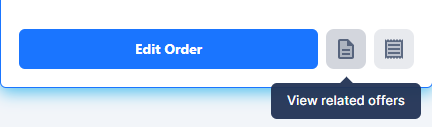
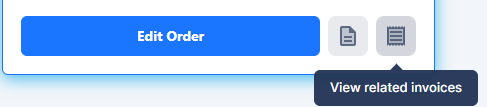
The order overview thus provides quick orientation and simplifies the management of orders, especially for larger projects with many positions or multiple associated documents.
Order Editor
The Order Editor is the central page for managing an individual order. It opens when you click on an order in the order overview. On this page, all relevant information about the order is displayed and can be edited.
At the top of the editor, you can see the customer, the total net order value, the positions already invoiced, and the open amount — which represents the difference between the total order value and the amounts already billed. You can also navigate directly to the associated offer or add attachments to the order — either for individual positions or for the entire order. Material requirements and notes can likewise be managed directly within the order.

The main section contains the order positions. These positions are imported from the offer by default, but can be supplemented if additional costs arise or extra discounts are to be granted. Each position can be edited or deleted as long as it has not yet been marked as invoiced. Once a position has been invoiced, its status changes from “not invoiced” to “invoiced,” and it can no longer be edited.

For each position, the following information is displayed: quantity, name, unit price, discount, total price, item number, description, and attachments. Positions can be duplicated to quickly create similar items.
At the top right, the outstanding amount is displayed. From an order, both invoices and credit notes can be created:
-
Invoices can be created when the outstanding amount is positive.
-
Credit notes can be created when the outstanding amount is negative.
A negative outstanding amount can occur if individual positions are edited to have a negative price or if a new position—such as a “discount” item with a negative amount—is added. These adjustments cause the total amount to become negative, making it possible to create a credit note.
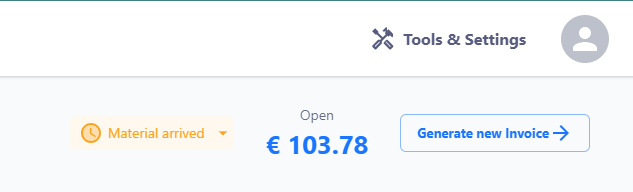
Additionally, the order editor displays the status of the order to monitor progress. Various stages are shown here, including: “created,” “material received,” “processing started,” “processing complete,” “material shipped,” and “completed.”
Delivery Notes
Delivery notes in Surface Solutions are used for documenting and tracking deliveries within an order. They are created directly in the Order Editor of an existing order, so that all relevant information about the order and its items is automatically included.
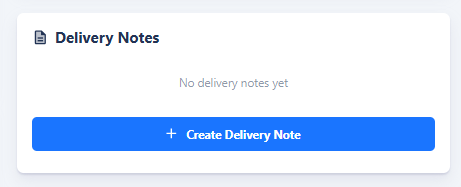
To create a delivery note, click the Create Delivery Note button in the Order Editor. This opens the Delivery Note Editor, where you can review and edit the desired information. Once completed, a PDF can be generated, which can be used for both internal purposes and customer shipments.
Created delivery notes are displayed in the Order Editor under the Delivery Notes section. This allows you to always keep track of already created delivery notes and see which items have already been delivered.
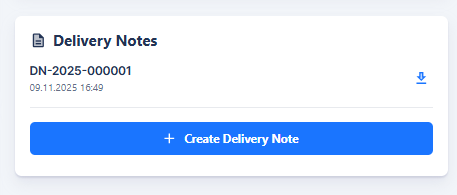
The creation of delivery notes is thus closely integrated into the order workflow and ensures that deliveries are documented, traceable, and transparent for all parties involved.