
Calculation Definition
The Calculation Definition in Surface Solutions is the central tool for designing the calculation logic for all calculations in your company. It allows you to create individual calculation models, define fields and formulas, and set up notes that are displayed in the Calculation Editor. With the Calculation Definition, you can ensure that all calculations are performed consistently, transparently, and flexibly.
Access to the Calculation Definition
You can access the Calculation Definition via the menu item "Tools & Settings" → "Calculation Definition".
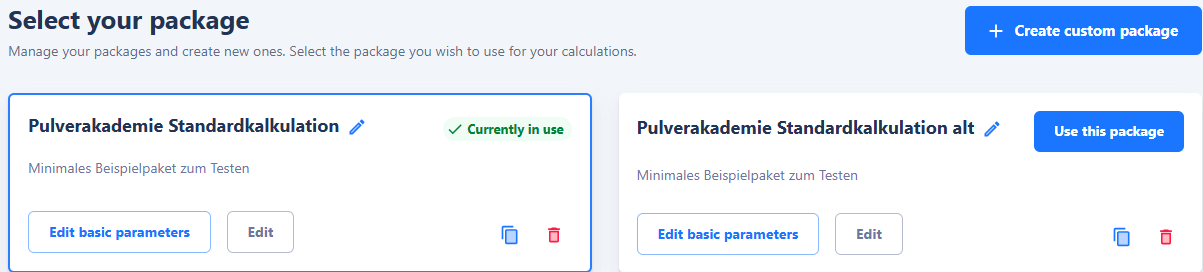
After opening it, you will see an overview of all existing packages. A package contains the complete calculation logic applicable to specific items or calculation scenarios.
Packages are valid across the entire organization, meaning all users within your organization access the same packages. This ensures that calculations are performed consistently, regardless of which user creates or edits the calculation.
Packages
A package forms the basis for a calculation and contains all the information necessary for the computation: templates, fields, formulas, and notes.
Packages can be either standard packages, which are already provided by Surface Solutions, or custom packages. Custom packages are suitable for capturing the specific requirements of your company.
Adjust Basic Data
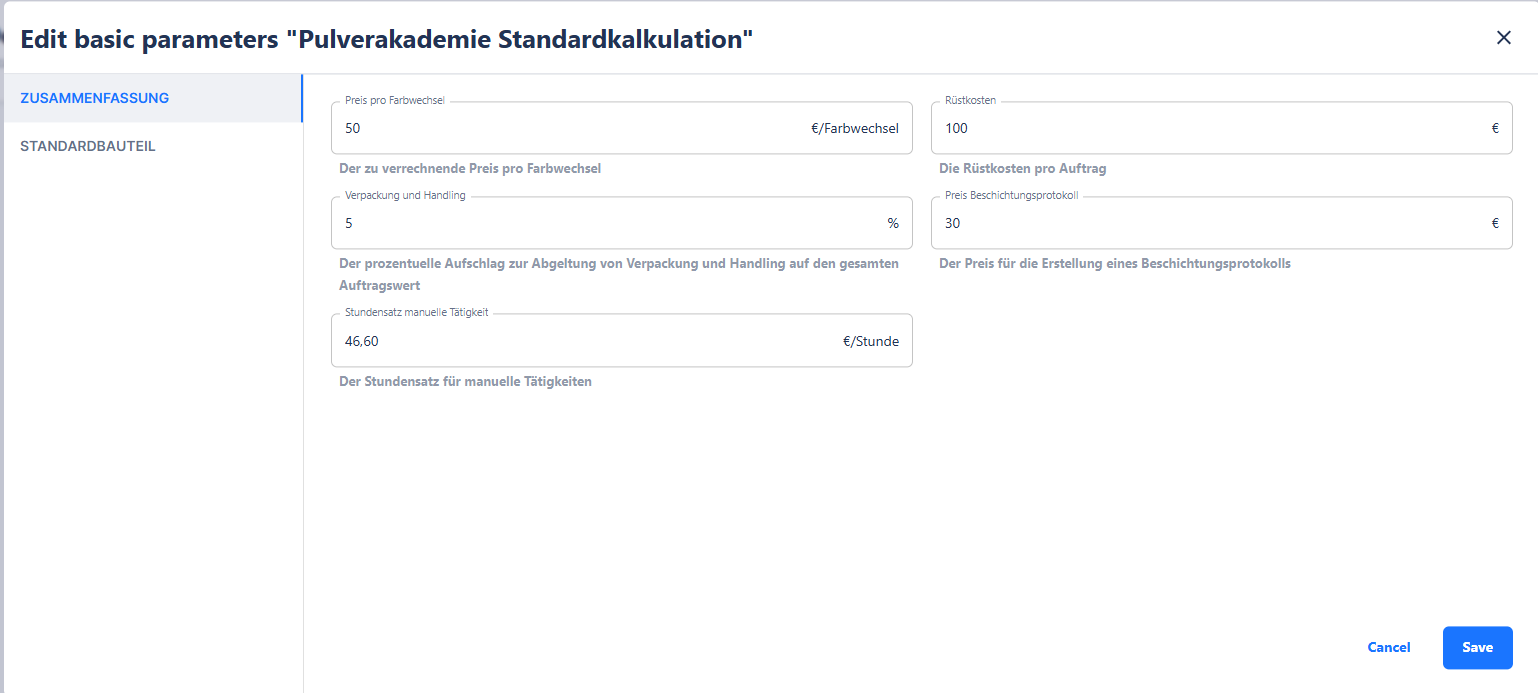
For each package, you have the option to quickly edit predefined values using the "Adjust Basic Data" button. This includes, for example:
-
Base price per unit
-
Price per square meter
-
Price per kilogram
This function allows you to make simple adjustments without interfering with the formulas of the fields. It is particularly suitable for users who want to update values without changing the complex calculation logic in detail.
Our recommendation: Edit the packages provided by us first using the Adjust Basic Data function before making more complex changes.
Templates
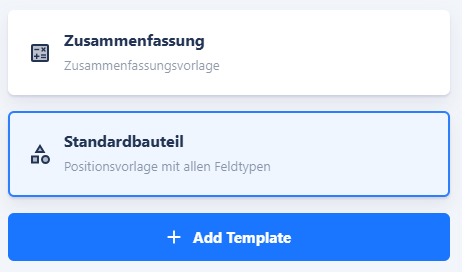
Within a package, calculations are organized using templates. Each template is a collection of fields and formulas for a specific calculation type, for example:
-
Standard item
-
Small part
-
Special coating
A template defines which fields are queried, how they are calculated, and which notes are displayed.
Item Assignment
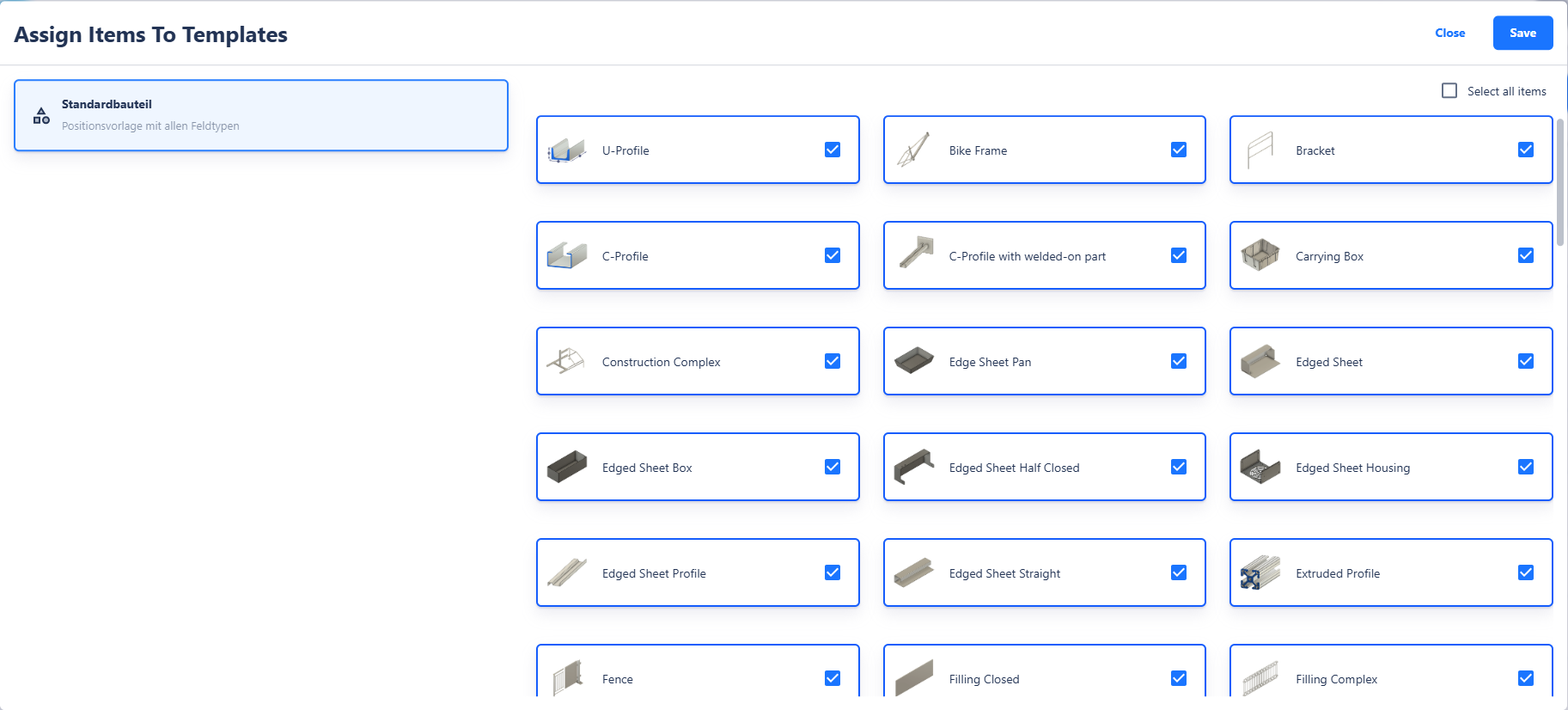
Each item is assigned to exactly one template. The standard position is assigned automatically, while other templates must be assigned manually using the "Link Items to Templates" button. This ensures that each item uses the appropriate template for its calculation, while multiple items can share the same template.
Sections Within Templates
Templates can be divided into sections to group fields thematically. Sections help keep the calculation logic organized. You can add, move, and rename sections. Fields can also be moved between sections, for example, to group surcharge fields or additional costs in a separate section.
This structure makes it easier to organize complex templates and ensures that users see information clearly structured in the Calculation Editor.
16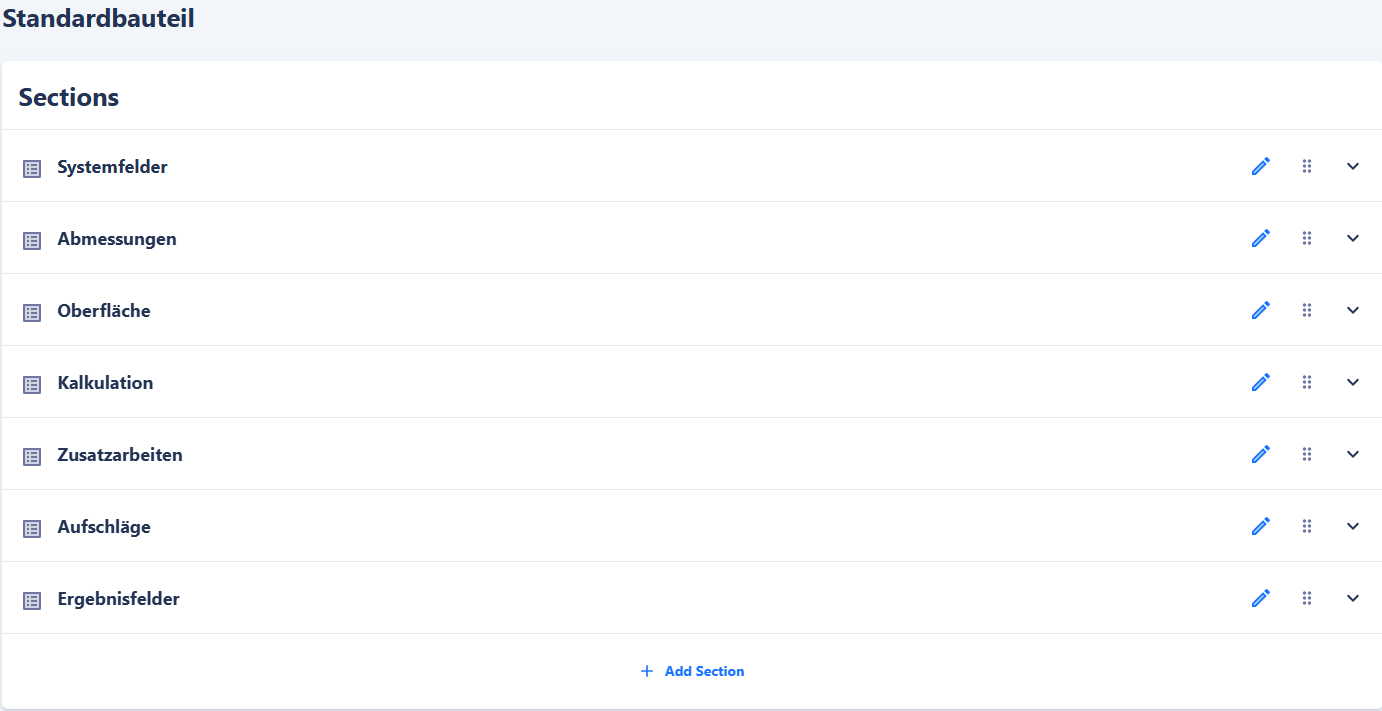
Standard Item Template
The Standard Item Template is the central template for individual items. It contains the fields and calculation logic needed for most items in the calculation, such as length, width, height, color, or material costs. Each position in the calculation is initially represented using this template, ensuring that calculations for each item are performed consistently.
Summary Template
The Summary Template is a special template that consolidates all items in a calculation. It is not a template for individual positions but summarizes the overall results of the calculation. Its fields can be found in the Calculation Editor under "Surcharge Fields."
An example of a field in the Summary Template is "SUM_POSITION_PRICE", which automatically calculates and inserts the sum of all positions in the calculation. You can then apply surcharges to this value.
Fields
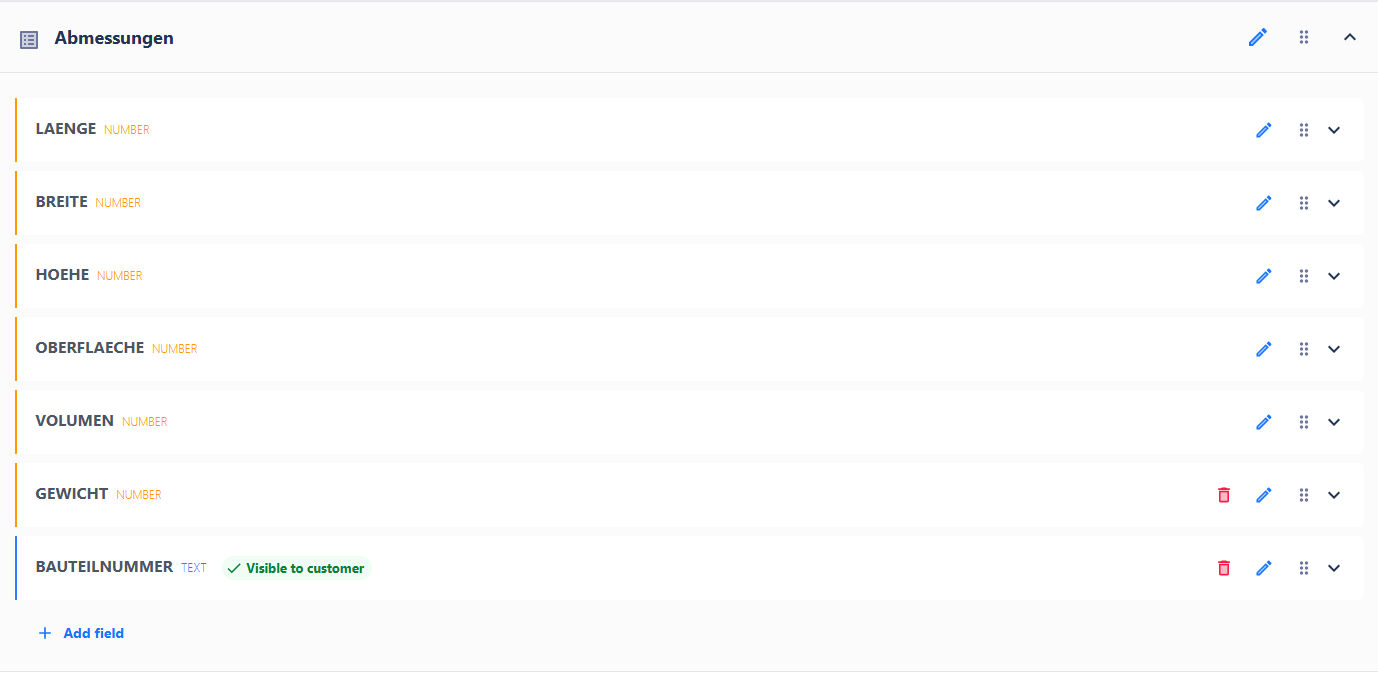
Fields are the fundamental building blocks of a template. They can serve as input fields for the user or contain calculations.
System Fields
Some fields, such as QUANTITY and PRICE, are required by the system. These fields cannot be deleted but can be optionally hidden. System fields are used to capture inputs or calculate results necessary for the calculation.
Field Types
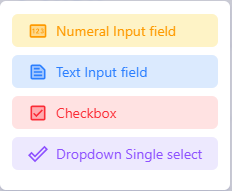
You can create fields in various types:
-
Numeric: Numerical values such as length, width, or weight
-
Text: Free text information
-
Checkbox: Yes/No query
-
Dropdown: Selection from a list of predefined values
Editing Fields
You can edit a field using the pencil icon. The following properties can be defined:
-
Title and default value
-
Unit (e.g., kg, €, €/m²)
-
Formula, if the field should be calculated
-
Visibility, for example, is visible to the customer in the offer or PDF export
-
Visibility condition, which uses formulas to control whether a field is displayed
Fields without a formula serve exclusively as input fields for the user.

Formulas
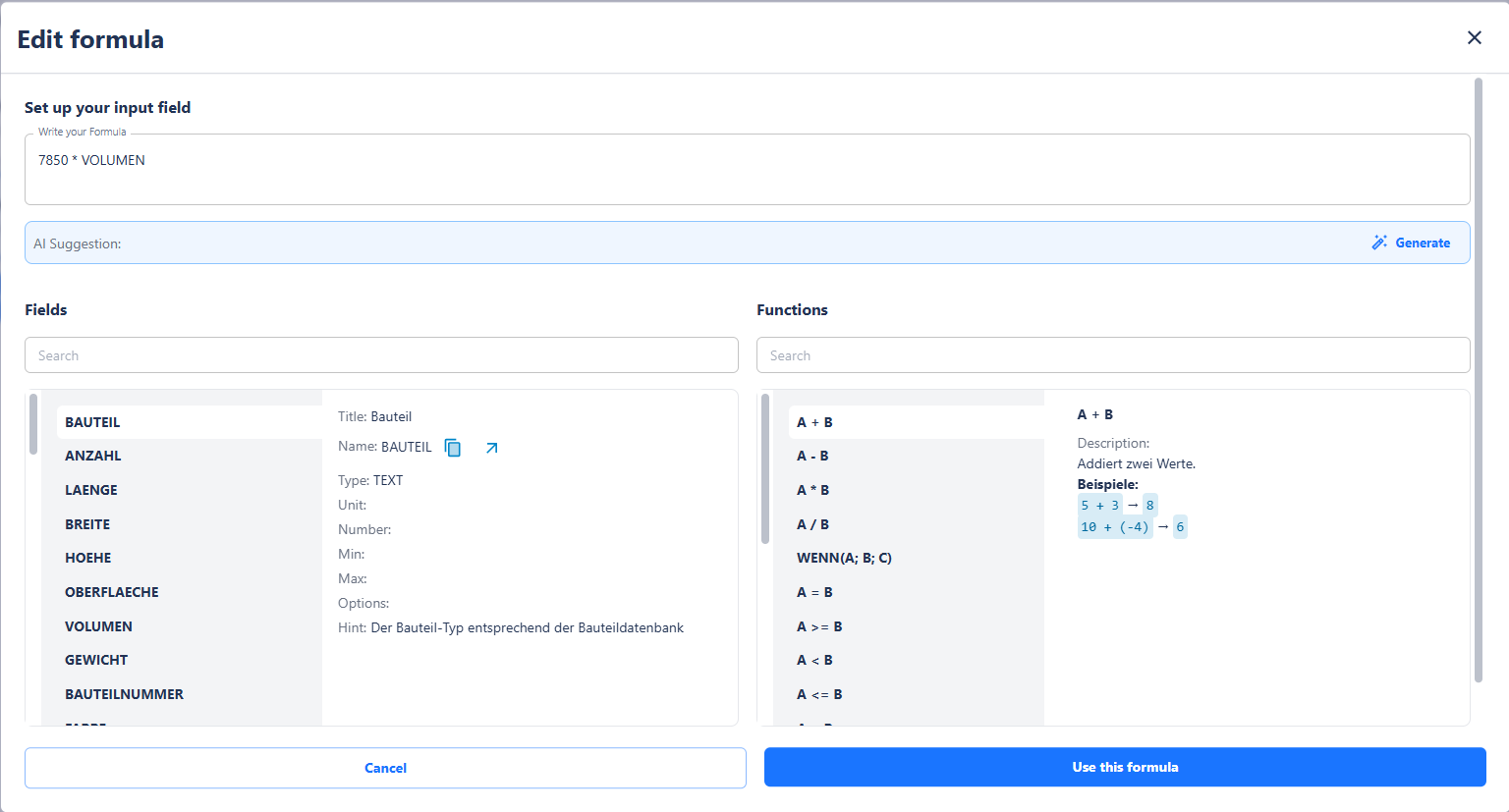
Formulas allow calculations to be performed dynamically. They are defined similarly to spreadsheet programs and can include operators and functions, such as:
-
Basic arithmetic: Addition (+), Subtraction (–), Multiplication (*), Division (/)
-
Conditions: If-Then
-
Comparison operators: >, <, =
-
Logical operators: and, or, not
Formulas reference other fields within the same template, enabling complex calculations such as price determination, material requirements, or surface area calculations.
Examples of formulas include:
IF(QUANTITY > 100; 0.9; 1.0)
LENGTH * WIDTH * HEIGHT
QUANTITY * UNIT_PRICE
Notes
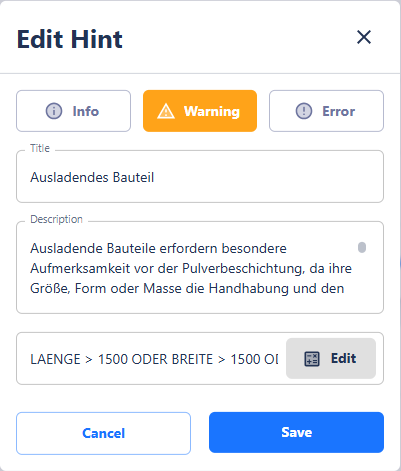
Notes are used to alert users to specific conditions or special considerations.
- Notes can be of the type Information, Warning, or Error.
- They appear at the bottom left of the position in the Calculation Editor.
- Their display can be controlled using formulas, so that notes are only visible under certain conditions.
Example: A note could appear when the quantity of an item exceeds a defined value.
Test Function
The test function allows you to simulate a template. All fields, including hidden ones, are displayed so you can check whether the formulas work correctly and if the results meet your expectations. The simulation does not save any data; it is solely for reviewing and validating the calculation logic.
Summary
The Calculation Definition is a powerful tool that gives you full control over your calculation logic.
-
Packages bundle all templates and provide organization-wide calculation logic.
-
Templates define the structure and calculations for individual items or calculation types.
-
Fields capture inputs and calculations, allowing complex computations through formulas.
-
Notes inform users about specific conditions.
-
The Test Function offers a safe way to review templates before using them in practice.
With this structure, you can work flexibly and transparently, handle complex calculation scenarios, and ensure both user-friendliness and consistency in your calculations.