Offer
Overview
Offers in Surface Solutions form the central link between calculations and orders. They allow you to generate a professional offer for your customers based on a completed calculation—comprehensive, transparent, and in your corporate design.
An offer summarizes the results of a calculation and adds customer-relevant information such as payment and delivery terms, tax rates, and legal notices.
All content is automatically compiled from three sources: customer data, calculation, and document definition. This creates a complete, correctly formatted offer with minimal effort.
With offers, you can:
-
Create offers directly from existing calculations
-
Automatically adopt customer and standard information
-
Adjust positions individually and apply discounts
-
Export offers as PDF or send them via email
-
Create follow-up offers or generate orders directly from won offers
The offer management in Surface Solutions is divided into several areas:
- Create Offers
Describes the process of generating an offer from a calculation.
All relevant data is automatically adopted, standard positions are added, and the offer can be reviewed using the preview function before being finalized. - Offer Overview
Displays all created offers in a table format.
Here, you can filter, search, export, or send offers via email.
If the status of an offer is set to "Won", an order can be generated directly from it. - Create Follow-Up Offers
Allows you to create a new follow-up offer from an existing offer—ideal for minor adjustments or price changes.
The new offer receives a version number (e.g., V2, V3, V4) to keep the development traceable.
Creating Offers
In Surface Solutions, offers can be created directly from a calculation. The prerequisite is that the calculation includes a customer. The customer provides the necessary information, such as address and contact person, which is automatically adopted into the offer.
Offer Editor
Once a customer is entered in the calculation, the "Create Offer" button appears in the top right area of the Calculation Overview. Clicking it takes you to the Offer Editor, where all data from three sources is consolidated:
- Customer Data: address, contact person, and other relevant information
- Calculation: positions, total price, and any additional information
- Document Definition: standard texts, footnotes, payment terms, delivery terms, and standard positions
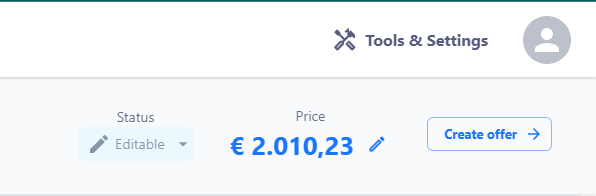
Positions in the Offer Editor
All positions from the calculation are automatically adopted into the offer. Additionally, standard positions from the document definition are added if configured. These can be deleted if needed.
In the Offer Editor, you can:
-
Edit or delete positions
-
Adjust prices for individual positions
-
Apply discounts to individual positions or the total sum
-
Change the order of positions
Preview and Creation
Clicking the "Create Offer" button generates the offer permanently and stores it in the Offer Overview. After creation, an offer can no longer be edited. If changes are needed, a follow-up offer can be created (see chapter "Create Follow-Up Offer").
Numbering
Each offer receives a sequential offer number. The numbering sequence can be defined organization-wide through the document definition, similar to invoices or credit notes.
Offer Overview
The Offer Overview in Surface Solutions provides central management of all created offers. It allows you to quickly review the status, details, and next steps for each offer.
You can access the Offer Overview via the "Offers" item in your navigation bar.

Overview and Filters
In the overview table, you can see the following information for each offer:
-
Offer number
-
Creation date
-
Customer
-
Creator
-
Status
-
Net and gross amount
You can filter offers by status and customer or use the free-text search to find specific offers. Filtering is dynamic, and the overview is updated accordingly.
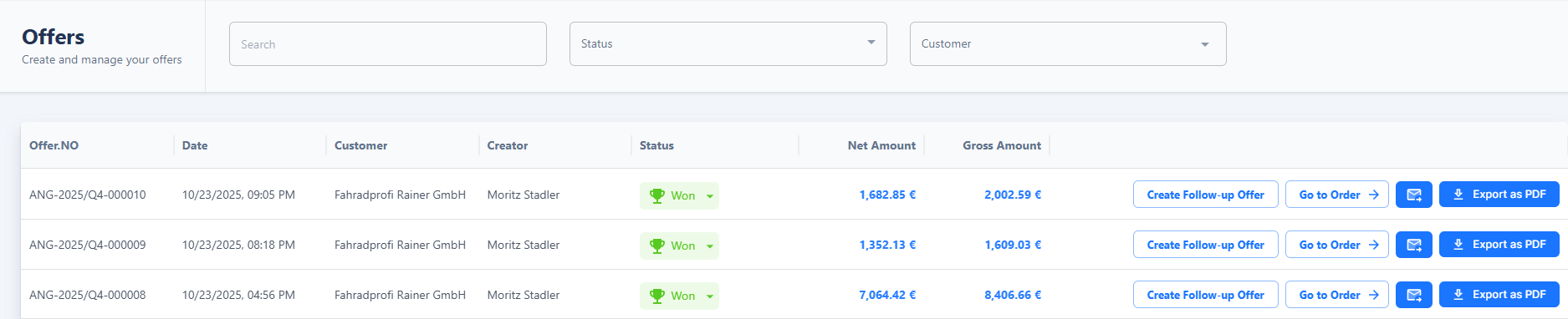
Actions for Offers
The following actions are available for each offer:
-
Create Follow-Up Offer: The offer is copied, allowing minor adjustments without creating a new calculation. For more complex changes, duplicating the calculation is recommended.
-
Send Offer via Email or Export as PDF: Data is automatically adopted from the customer database, the calculation, and the document definition.
Status "Won" and Order Creation
The status field is particularly important:
When you set the status of an offer to Won, the "Generate Order" button appears automatically. Clicking this button creates an order based on the offer, adopting all positions, prices, and information.

Create Follow-Up Offers
A follow-up offer is used to make small changes based on an existing offer, without recalculating the underlying calculation. This function is particularly helpful when you want to adjust prices or quantities, or modify individual items, without having to repeat the entire offer creation process.
Creation of a follow-up offer
In the offer overview, you will find the button “Create follow-up offer” for each existing offer.
After clicking on it, the offer editor opens and automatically takes over all data from the original offer:
-
Customer information
-
Positions and prices
-
Texts and notes from the document definition

In the editor, you can edit all relevant values — such as prices, quantities, or texts. However, the calculation logic remains unchanged. Therefore, it is not possible to modify calculations or templates within the follow-up offer.
The new follow-up offer automatically receives the same offer number as the original, supplemented by a sequential version number, e.g. V2, V3, or V4. This ensures that the development of an offer remains traceable at all times.
If major changes are required — for example, adjustments to positions that require a recalculation — it is recommended to duplicate the calculation and create a completely new offer based on it. This ensures that both the original data and the calculation logic remain consistent and traceable.