Create Invoice
Invoices in Surface Solutions are created exclusively based on existing orders. This means that an invoice can only be generated if an order has a positive outstanding amount. If the outstanding amount is greater than 0, an invoice can be created. If the outstanding amount is less than 0, a credit note can be created instead (see the Credit Notes chapter).
Access and Creation
To create a new invoice, first open the desired order.
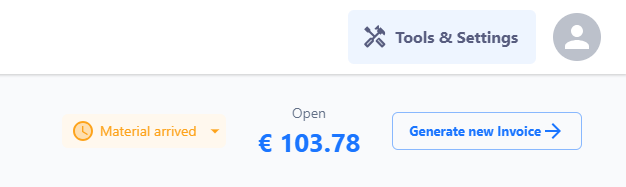
In the upper section of the order editor — in the header — you’ll find the button “Generate New Invoice”.
After clicking this button, the invoice editor will open.
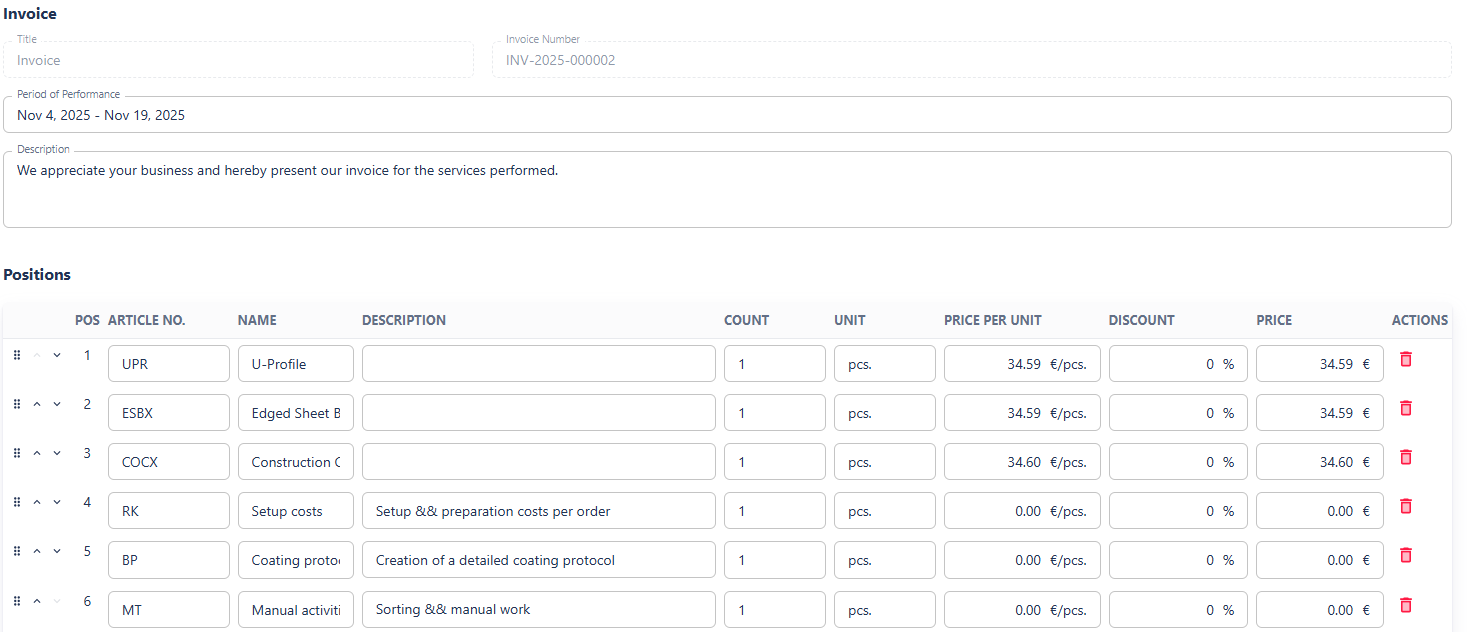
The invoice editor displays all the information that will appear on the invoice. This data comes from three sources:
- From the order – in particular, the items, amounts, and reference values.
- From the customer data – such as name, address, contact person, and tax number.
- From the document definition – including predefined standard texts, tax rates, payment terms, and legal notices.
Editing Options in the Invoice Editor
In the invoice editor, you can adjust various details before generating the invoice:
- Sender information: Select or modify your own address details.
- Customer Information: View the customer’s address and, optionally, add a separate delivery address.
- Service period and description: Free-text fields for a more precise description of the billed services.
- Positions:
-
Positions from the order are imported automatically.
-
Individual positions can be edited (quantity, unit price, discount, total price).
-
The order of positions can be changed.
-
Positions can be deleted if they should not appear on the invoice.
- Important: Deleting a position in the invoice editor does not remove it from the order. It simply won’t be printed on the invoice and won’t be marked as invoiced.
-
After the invoice is created, all positions included in it are automatically marked as invoiced in the order.
When creating a new invoice, only positions that have not yet been invoiced are suggested.
Totals and Taxes
Below the list of positions, you will find the total overview. Here, you can:
-
Apply a discount to the total amount,
-
Select the tax rate (a single overall tax rate per invoice),
-
And — if enabled — display a SEPA QR code on the invoice to facilitate payment by bank transfer.
The available tax rates come from the document definition and can be maintained centrally there.
Surface Solutions attempts to automatically select the appropriate tax rate based on your country and that of your customer. However, you can override this selection manually at any time.
Preview and Generation
Once all information has been checked and is complete, two actions are available:
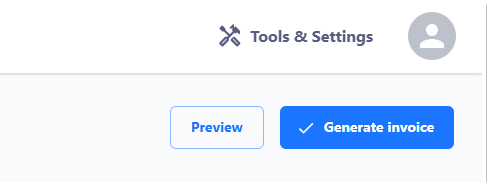
- Show Preview
Displays a temporary PDF preview of the invoice. This is for review purposes only and is clearly marked “Preview.” No document is saved or finalized during this step. - Generate Invoice
This action creates the invoice permanently.
Before generation, a preview is shown for final verification.
After confirmation, the invoice is assigned a sequential invoice number and saved in the invoice overview.
Note: Once generated, an invoice can no longer be edited or deleted.
If a correction is necessary, the invoice can be adjusted using the “Cancel” option or by creating a credit note (see the respective chapters).
Invoice Number and Filing
The invoice number is automatically assigned upon generation.
The number format can be configured via the document definition — for example, sequential numbers, years, or combinations thereof.
The completed invoice is automatically stored in the invoice overview. From there, it can be:
-
Downloaded as a PDF, or
-
Sent directly to the customer via email.