Registration & Setup
Overview
The chapter “Registration and Setup” describes the introduction to Surface Solutions – from creating a new user account to fully configuring the company profile.
First, it explains how to register via the website, activate your account, and then log in to the application. This is followed by the setup process, which starts automatically upon the first login and guides you step by step through all relevant company information.
Once the setup is complete and the company profile is fully configured, you can immediately begin working in Surface Solutions – creating offers, performing calculations, and managing orders.
Registration
Registration for Surface Solutions is done via the website surface-solutions.com
Click the button “Try for free” to access the registration form.

In the registration form, enter the following information:
-
Email address
-
First name
-
Last name
-
Password
-
Language
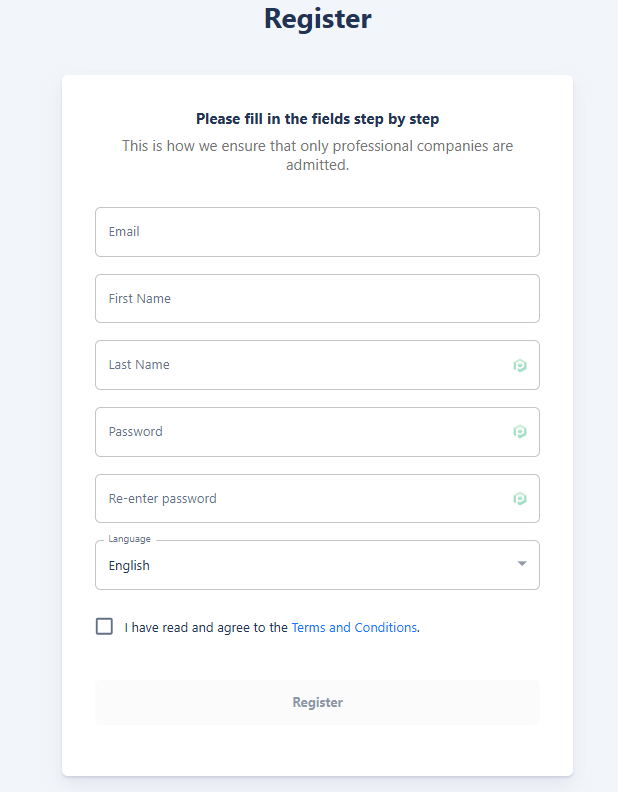
All fields are mandatory and must be completed to finish the registration process.
The selection of the language is particularly important, as it defines the organization language. It determines the language used for default texts in calculations, offers, invoices, and other documents. Changing the organization's language afterwards is only possible via the support team. The user interface language, however, can be customized individually by each user.
After completing the form, click “Register” to finish the process.
You will then be redirected to a confirmation page, where you will find a link to the login page. Use this link to log in with your newly created credentials, and you will then automatically be taken to the setup page to configure your organization.
Initial Setup
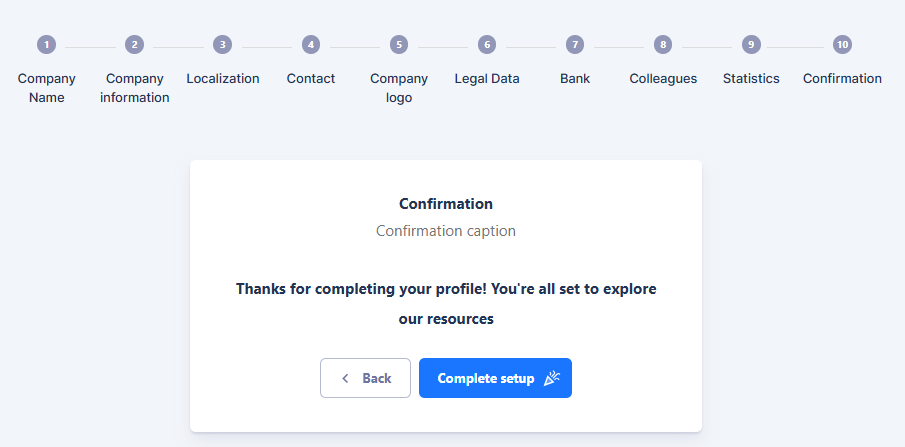
After successful registration and the first login, the user is automatically guided through the setup process. The goal of this step is to fully configure the company profile so that Surface Solutions can correctly configure all functions and documents. The setup process consists of ten consecutive steps in which all relevant company information is collected.

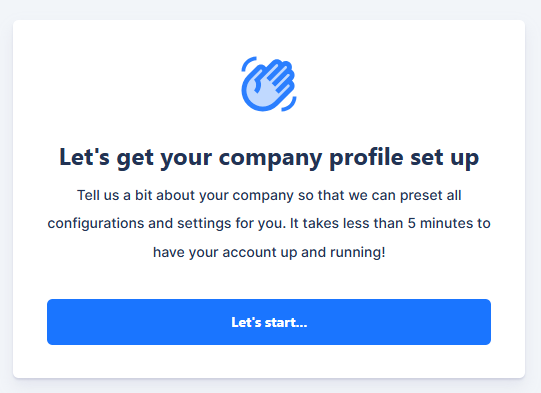
1. Company Name
In the first step, the full company name is entered as it appears in the commercial register. This information will later appear on all automatically generated documents, such as offers, invoices, and purchase orders.
2. Company
In the second step, the company address as well as country, postal code, and city are entered. These details are used by default as sender information on documents and can be adjusted later if needed.
3. Localization
Here, the language and currency of the organization are defined.
The selected language determines the language in which document definitions and standard texts are created in Surface Solutions.
The currency defines the unit in which all calculations, offers, and invoices are managed by default.
4. Contact
In the “Contact” step, the general contact information of the company is recorded. This includes a contact person, a phone number, and an email address.
It is recommended to use a functional address such as info@my-coating-company.com so customer responses can be managed centrally.
5. Company Logo
In this step, the company logo can be uploaded. This logo is automatically printed on all relevant documents, such as offers, orders, and invoices, and can be adjusted or replaced at any time.
6. Company Data
Here, the company’s legal information, such as VAT identification number and commercial register number, is entered. If this information is not available, a checkbox can be used to confirm that no such data exists.
7. Bank Details
In this step, the company’s bank account information is entered.
This information is used exclusively for display on documents (e.g., invoices) and is not used for payment purposes within the platform.
8. Team Members
Additional users can be added to the organization here.
For each team member, first name, last name, and email address are entered.
Invited persons automatically receive an email with a link enabling them to set their password and gain access to the organization.
9. Key Figures
This step is used to enter basic company metrics.
The provided values are used exclusively internally and anonymized for statistical evaluations to continuously improve the platform and its functions.
10. Confirmation
In the final step, all information is reviewed. By clicking “Set up company profile”, the profile is created.
From this moment, the company profile is fully set up, and the user can immediately begin making full use of Surface Solutions.