Invoice
- Overview
- Create Invoice
- Invoice Overview
- Canceling Invoices
- Create Credit Notes
- Export Invoices in Bulk
Overview
With Surface Solutions, you can make your invoicing efficient, transparent, and traceable. It allows you to manage invoices, credit notes, and cancellation invoices in a structured way, issue partial invoices, automatically calculate totals, and handle export and dispatch directly from the platform.
With invoices, you can:
-
Create, edit, and manage invoices for orders
-
Issue partial invoices or adjust individual line items
-
Generate credit notes when the open amount of an order is negative
-
Automatically create cancellation invoices to correctly reverse already issued invoices
-
Export invoices and credit notes as PDFs or send them by email
The invoice management system is modular and consists of several areas:
-
Invoice Editor:
Here, you create new invoices or credit notes from existing orders. All relevant information is pre-filled automatically, including customer data, line items, tax rates, and document templates. You can edit items, apply discounts, issue partial invoices, and check previews before the invoice is finally generated. -
Invoice Overview:
Provides a central view of all invoices, credit notes, and cancellation invoices. You can filter by customer or status, access individual invoices, export them, or send them by email. From this overview, you can also access the functions for cancellation and credit note creation. -
Cancel Invoices:
Enables the cancellation of already created invoices. A legally correct cancellation invoice is automatically generated to offset the original invoice. The status of the original invoice is set to "canceled," while the new cancellation invoice follows the same numbering sequence. -
Create Credit Notes:
Allows you to create credit notes for orders with a negative open amount. The editor corresponds to the invoice editor, enabling adjustment of items, totals, and tax rates, generating an independent credit note with its own numbering sequence. -
Export Invoices:
Enables batch export of multiple invoices within a defined date range. The selected invoices are compiled as PDF files in a ZIP archive for efficient archiving or further processing.
The invoice management in Surface Solutions thus provides a comprehensive solution covering all relevant steps from creation, editing, cancellation, and credit note generation to export. This ensures full control over open amounts, invoiced positions, and all invoice documents, regardless of the complexity of your orders.
Create Invoice
Invoices in Surface Solutions are created exclusively based on existing orders. This means that an invoice can only be generated if an order has a positive outstanding amount. If the outstanding amount is greater than 0, an invoice can be created. If the outstanding amount is less than 0, a credit note can be created instead (see the Credit Notes chapter).
Access and Creation
To create a new invoice, first open the desired order.
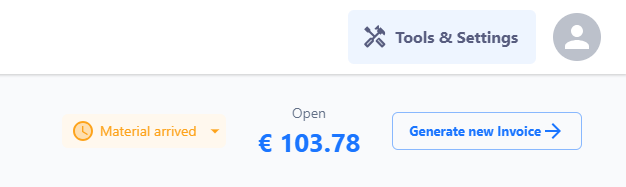
In the upper section of the order editor — in the header — you’ll find the button “Generate New Invoice”.
After clicking this button, the invoice editor will open.
The invoice editor displays all the information that will appear on the invoice. This data comes from three sources:
- From the order – in particular, the items, amounts, and reference values.
- From the customer data – such as name, address, contact person, and tax number.
- From the document definition – including predefined standard texts, tax rates, payment terms, and legal notices.
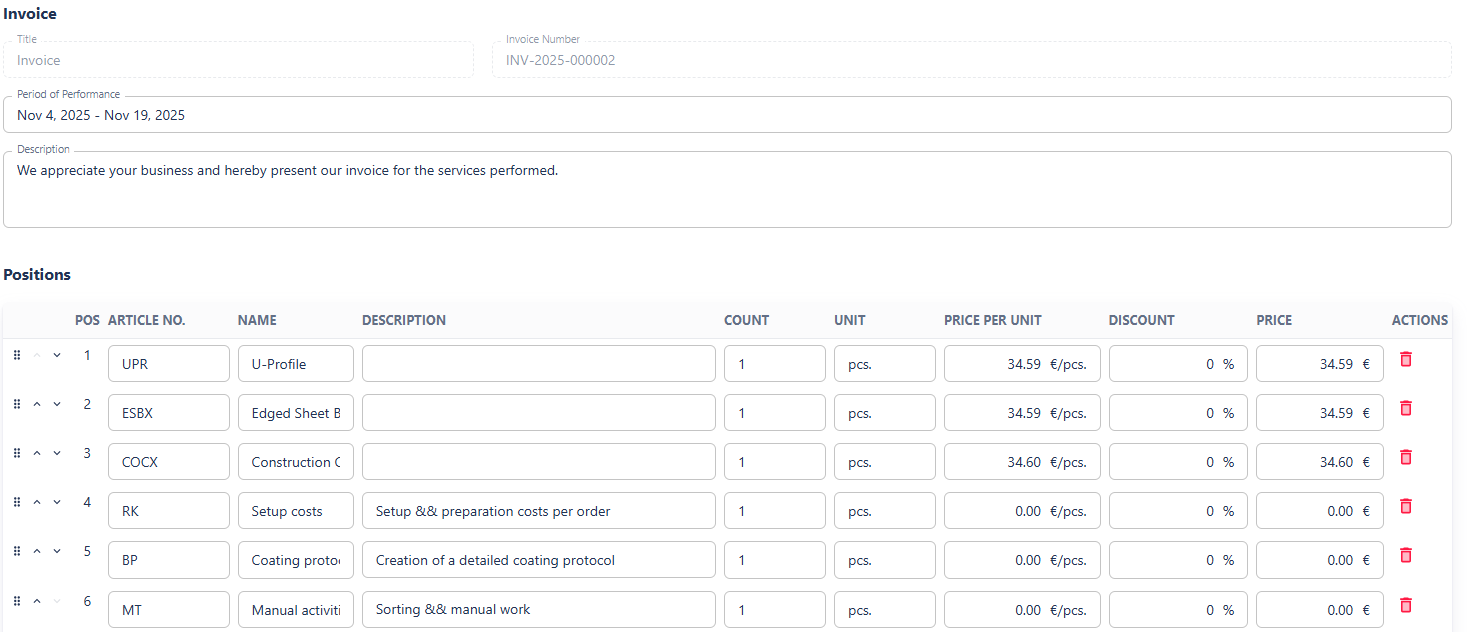
Editing Options in the Invoice Editor
In the invoice editor, you can adjust various details before generating the invoice:
- Sender information: Select or modify your own address details.
- Customer Information: View the customer’s address and, optionally, add a separate delivery address.
- Service period and description: Free-text fields for a more precise description of the billed services.
- Positions:
-
Positions from the order are imported automatically.
-
Individual positions can be edited (quantity, unit price, discount, total price).
-
The order of positions can be changed.
-
Positions can be deleted if they should not appear on the invoice.
- Important: Deleting a position in the invoice editor does not remove it from the order. It simply won’t be printed on the invoice and won’t be marked as invoiced.
-
After the invoice is created, all positions included in it are automatically marked as invoiced in the order.
When creating a new invoice, only positions that have not yet been invoiced are suggested.
Totals and Taxes
Below the list of positions, you will find the total overview. Here, you can:
-
Apply a discount to the total amount,
-
Select the tax rate (a single overall tax rate per invoice),
-
And — if enabled — display a SEPA QR code on the invoice to facilitate payment by bank transfer.
The available tax rates come from the document definition and can be maintained centrally there.
Surface Solutions attempts to automatically select the appropriate tax rate based on your country and that of your customer. However, you can override this selection manually at any time.
Preview and Generation
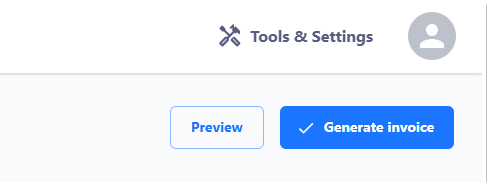
Once all information has been checked and is complete, two actions are available:
- Show Preview
Displays a temporary PDF preview of the invoice. This is for review purposes only and is clearly marked “Preview.” No document is saved or finalized during this step. - Generate Invoice
This action creates the invoice permanently.
Before generation, a preview is shown for final verification.
After confirmation, the invoice is assigned a sequential invoice number and saved in the invoice overview.
Note: Once generated, an invoice can no longer be edited or deleted.
If a correction is necessary, the invoice can be adjusted using the “Cancel” option or by creating a credit note (see the respective chapters).
Invoice Number and Filing
The invoice number is automatically assigned upon generation.
The number format can be configured via the document definition — for example, sequential numbers, years, or combinations thereof.
The completed invoice is automatically stored in the invoice overview. From there, it can be:
-
Downloaded as a PDF, or
-
Sent directly to the customer via email.
Invoice Overview
The invoice overview provides a central view of all invoices created in the system. From here, invoices can be viewed, exported, sent by email, or opened directly in the associated order.
You can access the invoice overview via the “Invoices” section in the navigation bar or through the quick access menu.

After an invoice is generated, it is automatically listed in the invoice overview. Each invoice is displayed as a separate row and shows the most important information at a glance.
Displayed Information
The overview displays the following information for each invoice:
-
Invoice Number – Automatically assigned according to the defined numbering logic.
-
Date – The date and time the invoice was created.
-
Customer – Name of the customer for whom the invoice was issued.
-
Creator – User who generated the invoice.
-
Status – Current status of the invoice (e.g., open, paid, canceled, etc.).
-
Type – Type of document, e.g., invoice, time-based invoice, or credit note.
-
Amounts – Displays net and gross amounts.
This overview allows the invoice progress to be efficiently tracked across the entire organization.

Filter Functions
Using the filter bar above the table, invoices can be filtered by status and customer. Both filters can be combined to display specific subsets, for example, all open invoices for a particular customer.
Filtering is applied directly on the page, so results are updated immediately. The filter settings are reset when leaving the page.
Batch Export
The Batch Export function is available in the invoice overview. It allows invoices within a specific time period to be exported simultaneously as a ZIP file. The ZIP file contains a separate PDF document for each invoice.
This function is particularly useful for accounting purposes or regular archiving.
Actions per Invoice
For each invoice, several actions are available in the overview:
-
Go to Order – Opens the corresponding order from which the invoice was created.
-
Send via Email – Opens your local email client, allowing you to send the invoice.
-
Export PDF – Allows downloading the invoice as a PDF file.
Cancellations
When the status of an invoice is set to “canceled,” the system automatically creates a credit note.
Before creation, a confirmation dialog appears asking the user to confirm the cancellation.
After confirmation, the credit note is automatically generated and displayed in the overview as a separate invoice with the corresponding note. More details on canceling an invoice can be found on the Canceling Invoices page.
Canceling Invoices
Invoices can be canceled directly from the invoice overview or in the invoice editor.
To cancel an invoice, select “canceled” in the Status field. A confirmation dialog will then appear, where you must confirm the action. The cancellation is only executed after this confirmation.
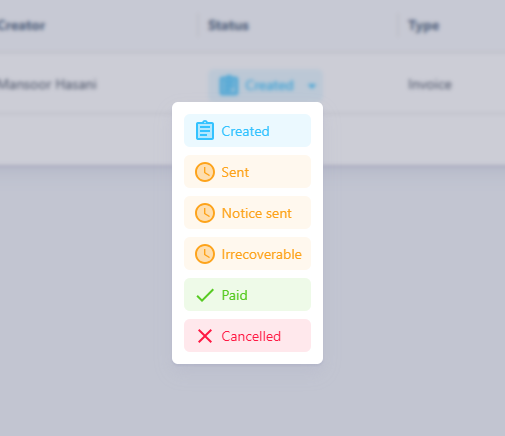
Cancellation Process
After confirmation, the selected invoice is marked as canceled. No further changes are made to the original invoice; it remains fully stored in the system. However, a new document is automatically created—the so-called cancellation invoice.
This cancellation invoice is assigned a consecutive invoice number within the same numbering sequence as regular invoices. It contains all items from the original invoice, but with negative amounts so that the total cancels out the previously billed amount. The generated PDF also automatically includes the note: "Cancellation Invoice for Invoice: [Original Invoice Number]".

Properties of the Cancellation Invoice
- The cancellation invoice is an independent document with the type “Cancellation Invoice”.
- It is displayed in the invoice overview as a new, current invoice.
- Content-wise, it corresponds to the original invoice but with negative totals.
- Email sending and export function the same way as with any other invoice.
- A canceled invoice cannot be reactivated or modified.
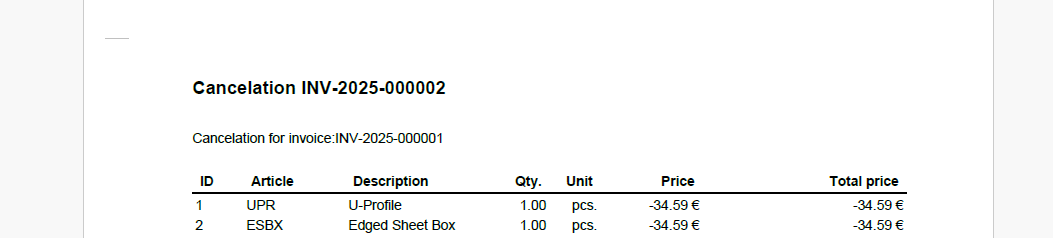
While cancellation invoices are issued within the same numbering sequence as regular invoices, credit notes have their own separate numbering sequence. This ensures that both types of documents remain clearly traceable.
Create Credit Notes
Credit notes in Surface Solutions are created exclusively from existing orders. A credit note can only be generated if the outstanding amount of an order is negative.
The outstanding amount is automatically calculated:
It results from the sum of all order items minus the amounts already invoiced. Once the outstanding amount is less than 0, the "Create Credit Note" button appears in the order editor instead of the "Create New Invoice" button.
If the amount is exactly 0, no invoicing can occur, and for a positive amount, the "Create Invoice" button is available again. In the order editor, you can add or remove items to adjust the outstanding amount.
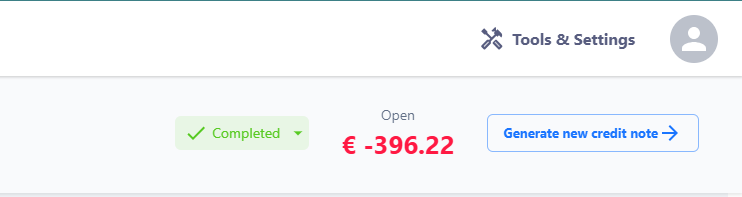
Credit Note Editor
By clicking on “Create Credit Note,” the Credit Note Editor opens, which in structure and functionality is identical to the Invoice Editor.
The credit note initially includes all positions from the order, but can be adjusted within the editor. The following editing options are available:
-
Edit positions: Quantity, price, discount, and order can be modified.
-
Add or delete positions: New positions can be added or removed without affecting the underlying order.
-
Totals, tax rates, and notes: The credit note total, tax rate, and any notes are automatically calculated or taken from the document definition.
-
Preview: The “Preview” button allows a temporary PDF preview of the credit note.
All text blocks, tax rates, and standard notes are derived from the document definition, which is centrally maintained per organization. The document title is automatically set to “Credit Note.”
Generation and Numbering
Once the information has been checked and confirmed, the credit note can be finally created using the "Generate Credit Note" button.
After generation:
-
The credit note is automatically linked to the original order,
-
It appears in the invoice overview with the type "Credit Note",
-
It receives its own sequential number from the numbering series for credit notes (independent of invoice numbers).
The numbering series can be configured via the document definition.

Export and Sending
Credit notes can – just like invoices –
-
be exported as PDFs,
-
sent to the customer via email,
-
and accessed through the invoice overview.
They are subject to the same formatting and layout rules as invoices, but differ in the document title.
Export Invoices in Bulk
In the Invoice Overview, users have access to the Bulk Export function to export multiple invoices at once.
Process
-
Click the "Bulk Export" button in the top right corner.
-
A dialog opens where you can set a date range for the export.
-
After confirming the date range, click "Export".
The export generates a ZIP file containing all invoices within the selected period as individual PDF documents.
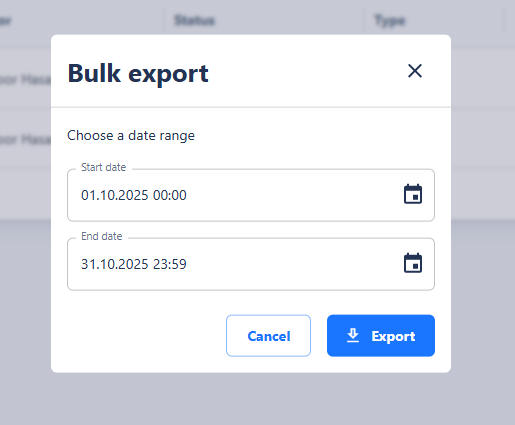
This bulk export provides an easy way to download invoices collectively for accounting, archiving, or internal reporting.